March 27, 2012
Sending Places and Group Icons
Today we wanted to write a blog post about two new exciting features we have recently introduced. We hope you will enjoy them and use them frequently.
Send place
First feature is an improvement on the current "Share Location" functionality. Historically our "Share Location" functionality allowed you to send your location to your chat partner or to your group chat. It is useful if you want to share your approximate location on a map. We got a lot of feedback asking for ability to share a specific place - for example, when you waiting to meet friends in a bar, at a restaurant or some other physical place. We have added this feature on top of the existing "Share Location" functionality. Now when you use "Share Location", you can either send your Current Location right away or wait a few seconds for places near you to load and pick from. If you haven't used "Share Location" before, this graphics shows you how to get to Share Location menu on iPhone, BlackBerry or Android devices:

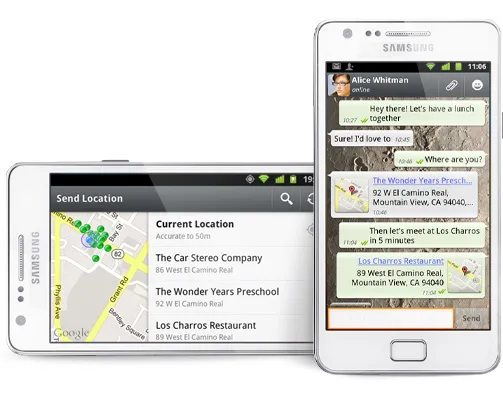
Once you enter "Share Location" menu, you will be presented with an option to send your Current Location immediately as you have always been able to in the past. Alternatively, if you wait a few seconds, you will be presented with a list of places nearby. Once you select the place to send, it will appear in the conversation. You can tap on the name of the place to get more information about it or you can tap on the map thumbnail to view the place on the map. This is what selecting places and viewing places looks like on the iPhone:
This is what selecting places and viewing places looks like on the Android:
This is what selecting places and viewing places looks like on the BlackBerry:
Group Icon
Second new feature we want to talk about is ability to set a Group Icon for your group chat. We wanted to give all of you the ability to personalize your group chat by attaching a custom icon to your group. For example, if you have a group chat about soccer, you can use a photo of a soccer ball as the group icon.
Anybody can set or change the group icon when viewing Group Info. This is how you get into the Group Info:

Once you enter Group Info, simply tap or click on the Group Icon to set it or change it:
Thanks for reading and stay tuned for more cool and innovative features as we continue to iterate and improve our product.